 Better Emoji Picker
Better Emoji Picker · for Windows 11
The emoji you want, one shortcut away.
Press Ctrl + Win + . in any app, type whatever's on your mind —“haha”, “please”, “party”— and pick. The emoji is pasted right where you were writing.
Get it fromMicrosoft StoreFor Windows 11 · x64 · in English and Spanish


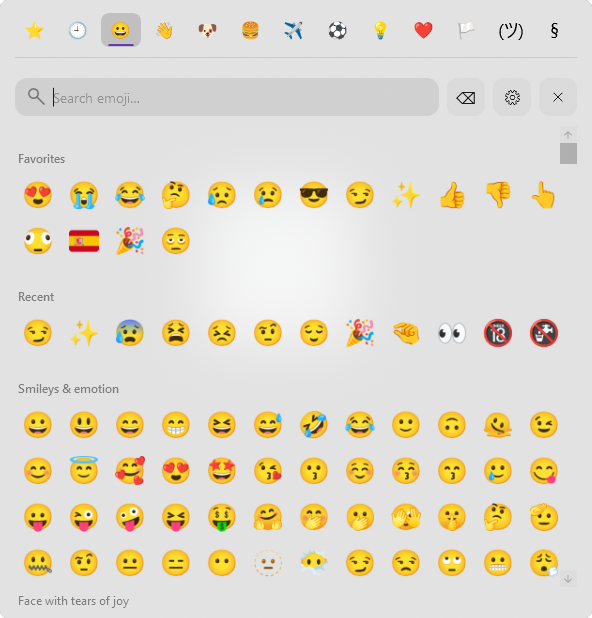
Real screenshot of the app · View full size ↗
Try it here
Search the way you talk.
This search box uses the same data, artwork and result ranking as the app. Type in English or Spanish, with or without accents, even with a typo or two.
Inside the app
Built to keep you in whatever you're writing.
The Windows emoji panel is fine in a pinch. Better Emoji Picker is made for people who use emoji every day.
01 / Shows up where you type
One shortcut, from any window.
It lives next to the clock and opens beside your text cursor, without switching windows. When you pick, the emoji is pasted straight into the field you were in.
- Default shortcut Ctrl + Win + ., and you can change it to anything you like.
- It stays open so you can send several in a row. Close it with Esc or by clicking outside.
- Fully keyboard-driven: type to search, arrows to move, Enter to send.
02 / More than emoji
Your tone, your favorites, your classics.
Over 1,900 emoji in Google's designs —the same ones you see on Android— sorted into categories, with the tab bar following along as you scroll.
- Pick a default skin tone and it applies to every emoji that supports one.
- Favorites and recents always on top, so the usual suspects are at hand.
- Kaomoji like ¯\_(ツ)_/¯ and symbols like § € → your keyboard doesn't make easy.


03 / Your way
Clear settings, no fuss.
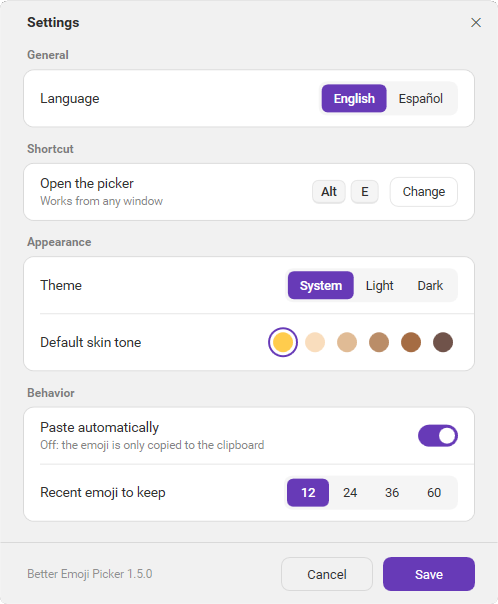
From the gear inside the picker, or by right-clicking its tray icon.
- Language: English or Spanish.
- Light, dark or system theme.
- Paste automatically, or just copy to the clipboard.
- How many recents to keep, and start with Windows.
From shortcut to message in a second.
Press the shortcut
In a chat, an email or a document. The picker appears right next to what you're writing.
Type what you want
“laugh”, “ok”, “coffee”, “jaja”… Search understands names, synonyms and slang in two languages.
Pick and you're done
With Enter or a click, the emoji is pasted where you were. If you prefer, it's only copied to the clipboard.

Google's designs
Noto Color Emoji artwork, crisp and familiar, instead of the Windows drawings.

Forgiving search
Ignores accents, understands multi-word phrases and tolerates typos like “hert” or “buterfly”.

Made for the keyboard
You never have to touch the mouse: shortcut, search, arrows and Enter.

Light or dark
Follows the Windows theme or pick one, with Windows 11's translucent backdrop.

English and Spanish
The interface and emoji names, in your language.

No internet
Everything ships inside the app. No accounts, no servers, no ads.
Before you start
Why doesn't it open with Win + . like the Windows one?
Windows reserves Win + . for its own panel, so the default is Ctrl + Win + .. You can change the shortcut in Settings to any combination you prefer.
Does it work in every app?
In any app that accepts pasted text: chats, browsers, email, Office, editors… If an app doesn't take the automatic paste, the emoji is still on your clipboard, ready for Ctrl + V.
Will the person I send it to see the same design?
What gets sent is the standard Unicode emoji, not an image. Whoever receives it sees it in their own device's design.
Does it need an internet connection?
No. The app doesn't connect to the internet: the emoji, their names and the search all ship inside it. Your favorites and recents are stored only on your PC.
Which version of Windows do I need?
Windows 11 on an x64 PC. It installs and updates through Microsoft Store.

What you type is your business.
No internet connection, no analytics and no accounts. The app only reads where your cursor is so it can open next to it —never the text— and keeps your favorites and recents on your own PC.
Read the full privacy policy →